Know your enemy. Be aware of your threats and weaknesses.
Contents
A video overview of Threats (and Countermeasures) is available here.
As you will know, there are many risks when building applications, this is the ‘what can go wrong’ question. After updating your diagram the IriusRisk Rules Engine and security content proves its value. The tool automatically identifies risk patterns and recommends countermeasures (security controls) to mitigate the threats. It leverages automation to provide the threats associated with your application or architecture, sorts them by component and use case, and gives them a level of priority.
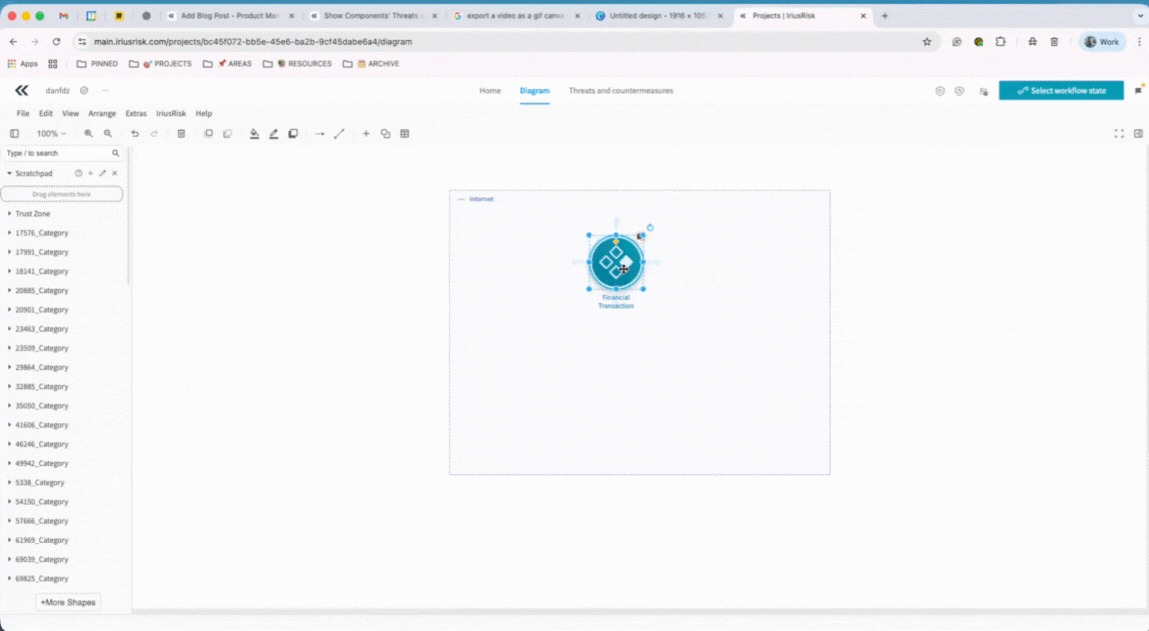
You can navigate to the full Threats & Countermeasures tab, as per the instructions below, however you can also see this information directly in the diagram view, without having to leave this area. This can be helpful to get snapshot information side by side quickly. Click on the component and you will see a shortcut menu which includes the threat (and countermeasure) details. These views can be expanded or compared side by side.
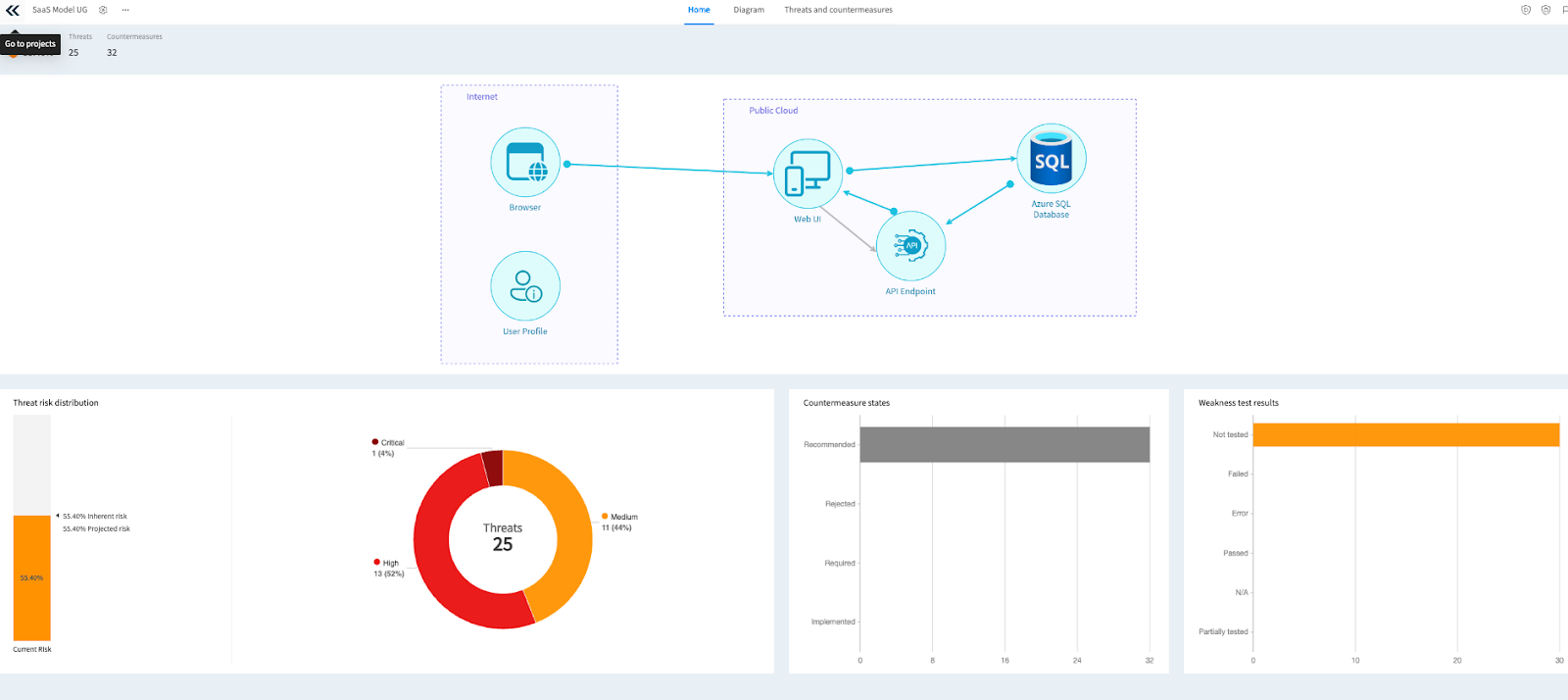
If you go to ‘Home’ at the top of the screen, you will be taken to your dashboard for that project. Here you are shown your Threat risk distribution, your Countermeasures states, and your Test results. These charts will dynamically change as you assess and mitigate your threats. Top left also gives your model an overall risk score, and tally of your threats and countermeasures.